 ROSC
Get the notification
When a member makes their payment, you get a notification.
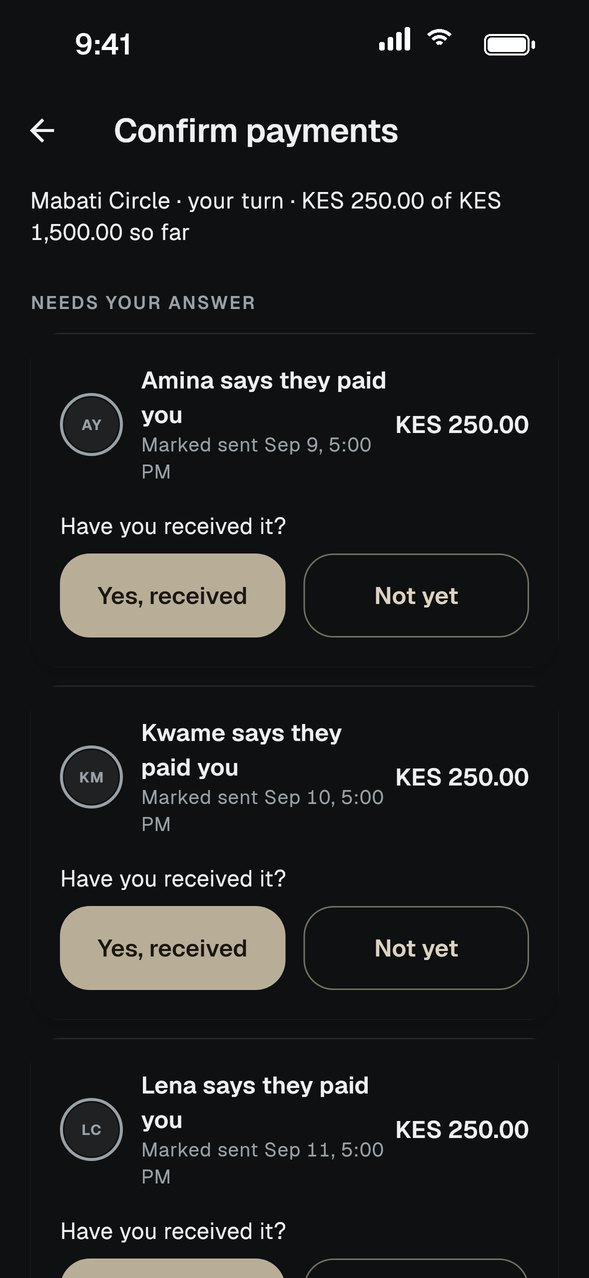
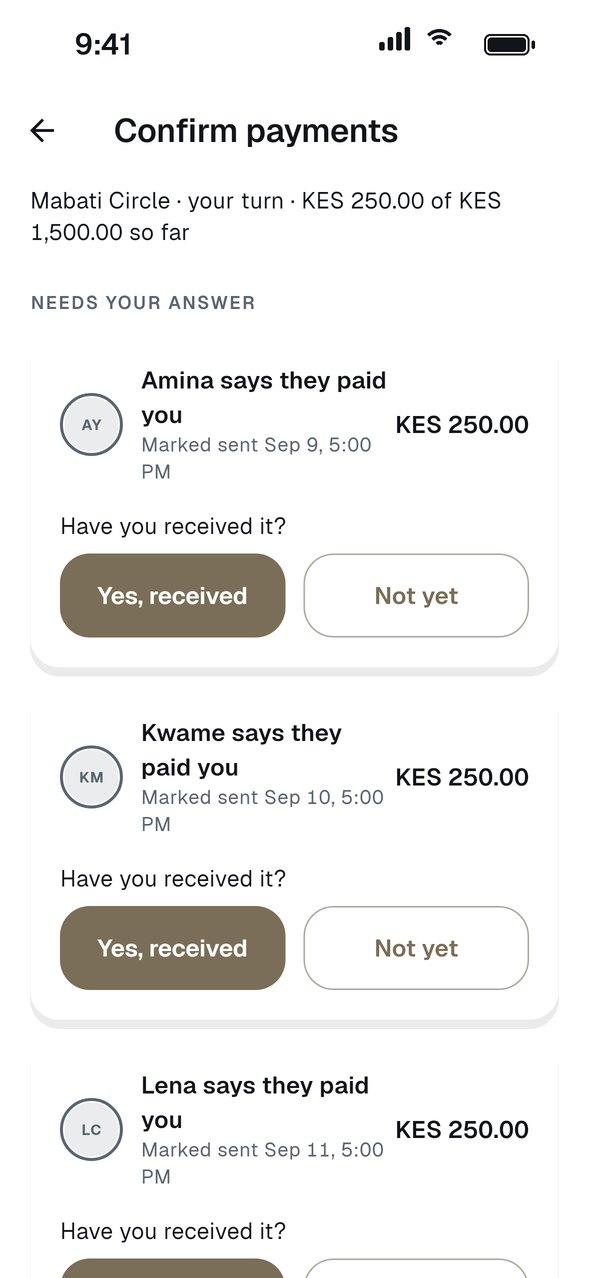
Open Confirm payments
Payments waiting for your answer appear under Needs your answer, with the amount and the time it was sent.
Check your account
Look in M-Pesa, your bank or wherever the money should arrive.
Tap Yes, received or Not yet
Tap Yes, received when the money is there. The record updates for the whole group. Tap Not yet if it has not arrived.
GOOD TO KNOW
- Only confirm after the money has arrived.
- If you do not answer, the payment stays Sent.
- Tap Not yet or Not received until 48 hours after the due date. After that it counts as received.
- For 7 days after that, you can still tap Report not received on your statement. Support looks into it before anything changes, and the payer is not told until then.
- A payment that never arrives moves into an owing group.